Manual · 05
The settings
Five settings shape the result. Regions change them on parts of the mesh, and two options handle tight folds and openings in the mesh.
The five settings
| setting | what it does | default | one arrow click |
|---|---|---|---|
| Bulge | how much the flesh bulges out around a contact: 1 is the normal amount, 2 twice as much, 0 none | 1.00 | 0.1 |
| Bulge Width | how far the bulge spreads out from the contact, in rows of faces, so a finer mesh (more subdivision) needs a bigger number for the same width | 15 | 1 |
| Dent % | how deep the flesh is pushed in where something presses on it, as a percentage of how thick it is there | 15 | 10 |
| Firmness % | how firm the flesh is: firm flesh dents less, and presses harder into its other parts and into other meshes (see Firmness) | 0 | 10 |
| Smoothing | smooths the result, most where the surface was stretched or squashed; 0 is off | 4 | 1 |
Bulge Width and Smoothing take fractions too, such as 15.5 or 2.5: the fraction blends toward the next whole number. Each setting is kept on a library override.
Where to start. The defaults are for skin at a joint, such as a knee or an elbow, where flesh squeezed from both sides rolls out. A cushion, a mattress or foam takes a dent without rolling out around it: Bulge 0 and Dent 70%. A strap or a hand pressed firmly into flesh: Dent 50% or more. The bulge's width and height follow the size of the faces where it is pressed: the same settings give a wider, taller bulge on a coarser mesh and a narrower, lower one on a finer mesh. Take these as a start and tune at the subdivision level you will render (step 1 of Your first shot).
One set of settings applies to every frame of an object: they can differ from one part of the body to another (see Regions), not from one frame to another.
Regions
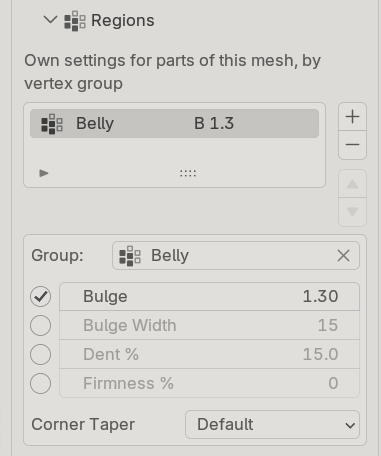 A region selected, with its own Bulge
Optional, and you do not paint anything. A region names a vertex group the character already has, such as a rig's deform group for the thigh, and changes this object's settings on that part of the mesh. (A different object has its own settings: pick it in the list in the Scene section.) Press Add Region to add one: it takes the active vertex group and changes nothing until you set something in it. If the mesh has no vertex groups the panel says so; make one in Object Data Properties ▸ Vertex Groups. Select a region in the list to see what it can set:
- Bulge, Bulge Width, Dent % and Firmness %: tick one to give the region its own value. It starts at the object's value, so ticking it changes nothing until you move it. The value follows the group's weights, vertex by vertex: where the group's weight is 1 the region's value applies, and where it is partial the value blends with the object's. A rig's skin weights already blend across a joint, so one region's value fades into the next. Where two regions overlap, they share the vertex by weight.
- Corner Taper: Default is the same as the whole mesh, which the Corner Taper checkbox decides. On tapers the contact patches this region owns even with that checkbox off, and Off leaves them alone even with it on. Unlike the values, the taper switches whole folds: a fold follows the region that holds most of it, so a region's edge never cuts a fold in half. A fold just outside a region, whose bulge reaches into it, follows its own switch.
Each row of the list says what its region sets: T for the taper, B for Bulge, D for Dent, W for Bulge Width, F for Firmness, or nothing set.
Where a region's edge crosses a fold, as at the crease of a raised thigh, the two sides of the fold take their own values: the belly side bulges by the hips' Bulge and the thigh side by the leg's. The change is spread over a short distance either side of the edge rather than stepping, even where a group's weight goes straight from 1 to 0. Well away from the edge, a region at Bulge 0.5 gives exactly what Bulge 0.5 on the whole object gives there.
Bulge Width per region follows the weights the same way: below the object's Bulge Width the bulge stops sooner there, and at 0 the contact there does not spread at all; above it, the bulge reaches further, only there. The change blends over a short distance at the region's edge, and nothing outside the region's reach changes.
Firmness
Firmness % (0 to 100, in the Deformation section) is how much the mesh resists being pressed in: at 100% it does not dent at all. A region can set its own, such as a firmer knee than belly. Because it also acts where one part of the mesh presses on another, it can change a contact's depth a little beyond the region itself.
Corner Taper
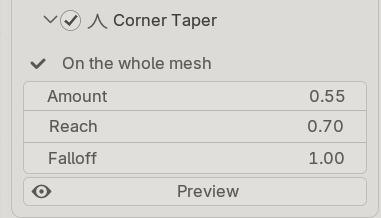 Corner Taper on the whole mesh, with its settings
Off by default. Off, the result is exactly what it is without the option.
Where a contact patch ends, as at the back of a bent knee, the bulge closes around the end into a dome, and a dome reads as more volume than the ridges along the sides. Corner Taper softens that dome. The corners are found automatically; you do not paint or mark anything.
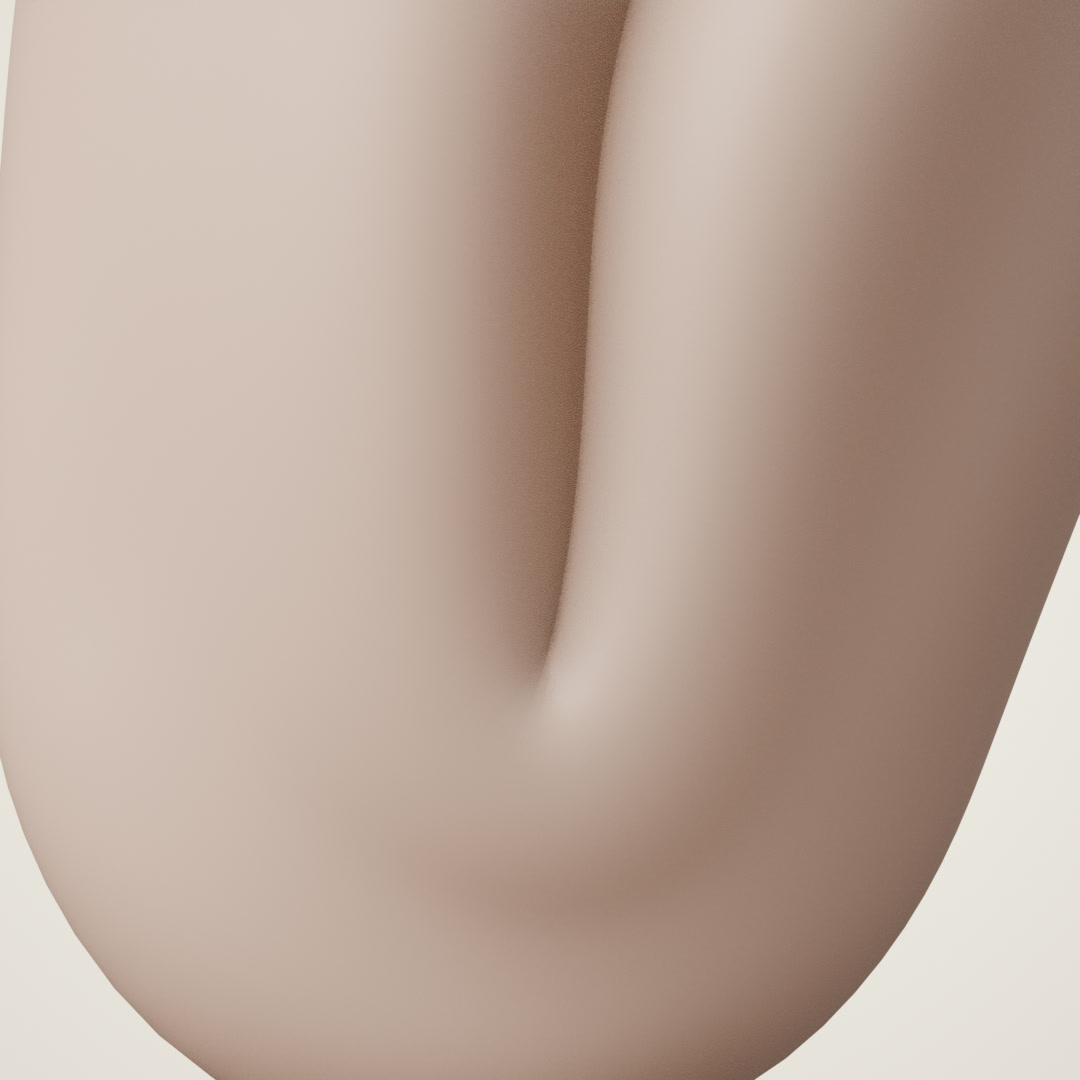 Corner Taper off: a dome of flesh where the crease ends
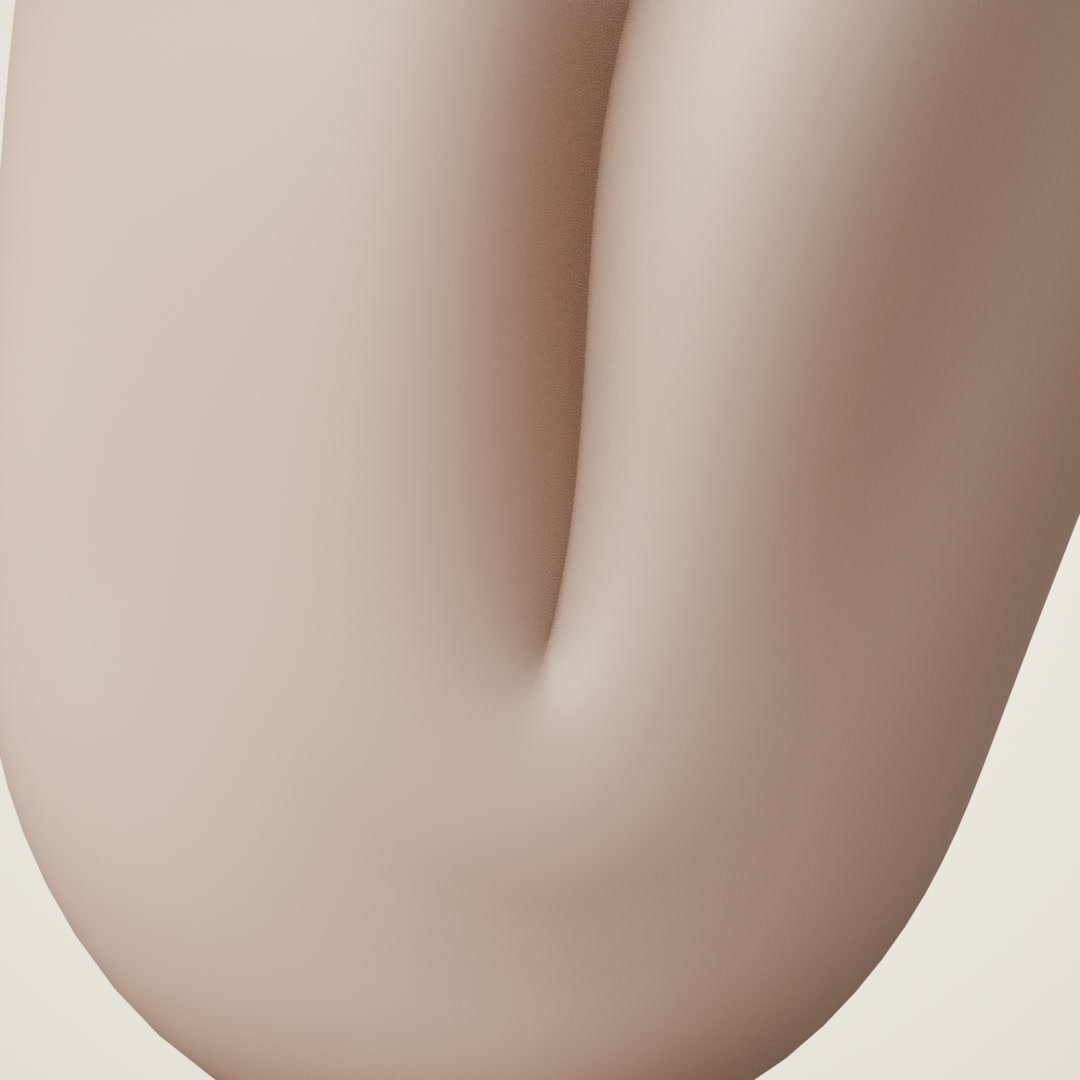 Corner Taper on: the crease closes flat
The checkbox in the section's header switches it on for the whole mesh. A region can switch it
on or off on its part of the mesh (see Regions): On there even with the checkbox
off, Off there even with it on. The first line of the section says where it acts: On the
whole mesh, On the whole mesh except Hips, Only in Thigh, or Off.
- Amount: how much of the bulge is taken away right in the fold; 1 takes all of it.
- Reach: how far out from the fold the softening starts, as a share of the contact's length.
- Falloff: how gradually it reaches full strength once it starts. 1 spreads it over the whole reach; lower values get there sooner. Because it still starts where Reach says, a lower Falloff also removes more: full strength covers more of the corner.
- Preview draws, in orange on the character, where the taper acts at this frame and how strongly. Moving a setting updates it straight away. It is a snapshot of the frame you pressed it on: after changing frame or pose, press it again. Nothing is saved with the file. At a low Falloff its edge looks sharper than the result: the surface itself stays soft.
Where it acts. On folds: places where the character's surface folds back against itself, like the back of a bent knee or the front of a raised thigh. It finds the crease where the two sides of the fold meet and softens the bulge at that end. Where two separate surfaces merely touch, such as a breast resting on the chest, it does nothing.
Through an animation it changes smoothly with the pose. One exception is worth knowing: where two neighbouring contacts join or part as the pose moves, the taper around them can shift by about one frame's worth of motion. Switching the taper off for that region removes it.
The effect is a few millimetres on a full-size character: look where the fold closes, close up.
Close Openings
Off by default, in the Deformation section. An opening in the mesh can read as contact where nothing touches it: a band pressed in near the opening, with a bulge round it. Openings like this come from a body whose head is a separate object (the neck), a Mask modifier's cut, or a garment's edge.
Close Openings fixes that, for this mesh and its colliders. Nothing is added to the mesh. With it on:
- the false contact near an opening goes;
- real contact near an opening, which a Mask's cut can hide, is found again.
Two kinds of edge are left as they are:
- the edge of a flat sheet, such as a ground plane or a card;
- a seam, where two pieces meet without being joined, such as a piece set into a hole in the body.
Turning it on or off changes the result, so frames baked one way are refused the other way until you bake again. Both stay in the cache, as with any setting.