Manual · one page
01
Getting started
What Fleshy needs, how to install it, and a first shot in five steps.
Requirements
- Windows, 64-bit. This build is Windows only; macOS and Linux are not supported yet.
- Blender 4.5 LTS or newer. Tested on 4.5 LTS, 5.0 and 5.2 LTS.
- A mesh of four-sided faces (quads) once its modifiers are applied. Give it a Subdivision Surface modifier: after one, every face is a quad. Any rig, or none. Only the meshes Fleshy deforms need quads: a collider can be any mesh.
Install
Drag fleshy-*.zip into Blender, or use Edit ▸ Preferences ▸ Add-ons ▸ Install from Disk.
The panel is in the 3D viewport's sidebar (press N) under the Fleshy tab.
To update, install the new zip the same way, over the old one, with Blender open or not. The new version works straight away; the old one's files are cleared the next time Blender starts.
Your first shot
Fleshy bakes at the subdivision level your viewport is showing, so set that to the level you render first.
1. Match the viewport level to the render level
On the character's Subdivision Surface modifier, set Levels Viewport to the same value as Render.
This is the step that matters most. Frames baked at one level do not play at another: if you bake with the two set differently, the render comes out with no deformation at all, and the panel says why.
2. Set Up
Select the character's body (not its rig) and press Set Up in the Object section. A collection called Fleshy Caches appears in the Outliner, under Scene Collection, holding one hidden object per set-up mesh: leave it there (see The cache objects).
3. Preview and tune
Pick a frame where something touches and press Bake This Frame. That solves the frame you are on and adds it to the cache, so what you see is exactly what will render. Change a setting and press it again: each press replaces that frame and nothing else. Bulge, Dent % and Bulge Width change the look most (see The settings).
To see every change at once instead, switch the object to Live (see Live or Baked).
4. Bake
Press Bake, whose button names the frames, such as Bake 1-250. It solves every frame and
adds them to the cache next to your .blend: roughly 50 MB for a 250-frame shot of a full
character at subdivision level 2, at a second or a few per frame. A box at the bottom of the
viewport shows how far it has got; Cancel or Esc stops it and keeps the frames done (see
Baking).
5. Keep animating
Once it is baked you can turn off the Subdivision Surface and Fleshy in the viewport to keep things responsive. Playback and rendering are unaffected: hiding something in the viewport does not change what renders.
The panel will say Hidden or simplified in the viewport. Renders are up to date: nothing to
bake. That is the expected message here, not a warning. While Fleshy is hidden, its check that
the animation has not changed since baking waits; it runs the moment you show Fleshy again.
Where to go next
02
The panel
Everything is in the 3D viewport's sidebar (press N), under the Fleshy tab, in five sections: Fleshy, Scene, Object, Deformation and Colliders.
Each section opens and closes on its own and can be dragged up or down by the dots at the right of its header. Ctrl+click a header to open it and close all the others, and hover one for what the section is for. A section with nothing in it yet shows only its Add button.
Every setting belongs to one object, or to one group of meshes set up as one (see Several meshes as one). For another character, pick it in the list in the Scene section.
The Fleshy section
 The Fleshy section: the version and the links
Which version of Fleshy you have, and buttons that open, in your web browser, this manual, Fleshy's account on X, and its Patreon page, where new versions are posted. Discord says how to join: Fleshy's Discord is invite only, so send us a message on X or Patreon and we will invite you. When you ask for help, say which version you have.
The Scene section
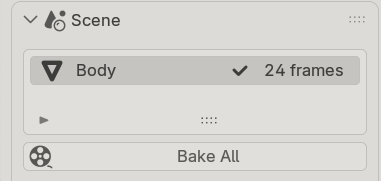 The Scene section: the list of set-up objects, with Bake All
Every set-up object in the scene, each with what its cache holds (see
The list's rows), and Bake All. The section is always there. Before
anything is set up it says what to do: Select a mesh to start while no mesh is selected (a rig,
say), and Nothing set up yet. Press Set Up below to start once one is.
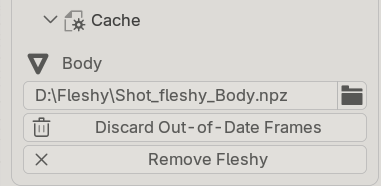 Cache, inside the Scene section, opened
Inside it, Cache, closed until you open it. It belongs to the object picked in the list, which its first line names: where that object's baked frames are saved, Discard Out-of-Date Frames (see When to bake again), and Remove Fleshy (see Cache files).
The Object section
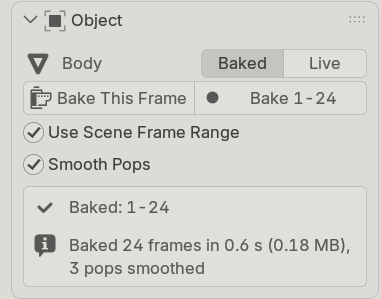 The Object section in Baked mode
The object the buttons act on, with Baked | Live beside its name (see Live or Baked). A mesh that is not set up yet shows Set Up here, and Set Up Collection for the collections it is in (see Several meshes as one).
In Baked mode: Bake This Frame and Bake (the button shows the frames), the frames to bake, Smooth Pops (see Smooth Pops), then one box with which frames are baked and the last message. In Live mode: Update, the frames to solve on, and the last message.
The Deformation section
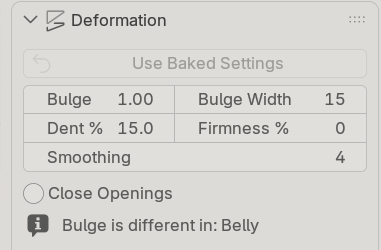 The Deformation section: the five settings
In Baked mode, Use Baked Settings first (see
Settings changed and changed back). Then this object's
settings, in two columns: Bulge and Bulge Width, Dent % and Firmness %, then Smoothing (see
The settings), and Close Openings. It notes any setting a
region changes, such as Bulge is different in: Belly. Inside it:
- Regions: different settings on parts of this mesh, by vertex group. See Regions.
- Corner Taper: the checkbox in its header, and its settings, shown while it acts somewhere. See Corner Taper.
The Colliders section
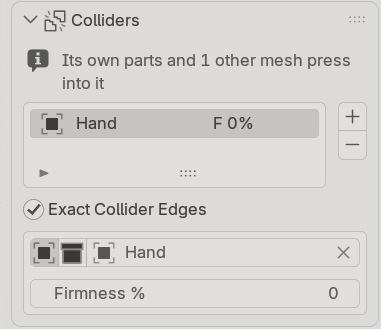 The Colliders section with one collider
Other objects that press into this mesh and, once there is one, Exact Collider Edges. The
first line says what presses on the mesh: Only its own parts press into each other, or Its own
parts and 2 other meshes press into it. See Colliders.
Number fields and the sidebar's width
Hover a number field and arrows appear at its ends: each click steps it, by 0.1 for Bulge, 10% for Dent and Firmness, 1 for Bulge Width and Smoothing, and 0.05 for the Corner Taper's settings. Drag across it for any value in between, or double-click it and type one. Hover any setting or button for what it does.
Drag the sidebar wider and a region's settings and the Corner Taper's go into two columns too.
03
Live or Baked
Each set-up object either solves as you work (Live) or plays frames it has baked (Baked). Both give the same result.
Each object is Baked (the default) or Live, switched beside its name in the Object section.
| Live | Baked | |
|---|---|---|
| After a change to the pose or a setting | shows at once | bake again |
| Playback and scrubbing | solves each frame: slow on a heavy character | fast |
| Rendering | solves each rendered frame | fast |
| Files | none | a cache next to the .blend |
Both give exactly the same result: Live solves what a bake would store. Use Live to pose, set up a still or tune a setting, and Baked for playback and final renders of an animation. You can switch back and forth; a cache already baked stays, and Baked plays it again.
Update, in Live mode
- On Release (the default) solves once you let go: when a bone drag, a timeline scrub or a slider stops. While you drag you see the last result.
- While Dragging solves at every step of a drag. Smooth on a light mesh; on a heavy one each step waits for the solve.
What it costs, on a full body of 180,772 vertices at subdivision level 2: a live frame is about 1.1 s, against 0.4 s for the character alone. After letting go of a bone the result appears in about 1.5 s. At level 1 a live frame is about 0.5 s.
Every Frame, or frame ranges
Every Frame (the default) solves on every frame. Untick it to give frame ranges, the same ranges Baked mode bakes: Live then solves only inside them, so playing or scrubbing elsewhere is instant. Outside the ranges there is no deformation, in the viewport and in a render, just as an unbaked frame has none in Baked mode, and the panel says so.
What Live does not need
Live does not need Bake, Bake All skips a Live object, and nothing in When to bake again applies to it. Show the subdivision in the viewport at the level you work at: if the viewport's mesh is not the one Set Up saw, Live says so and waits. After changing the subdivision level on purpose, press Set Up again.
04
Baking
Baking solves frames once and stores them in a cache file, so playback and renders cost almost nothing.
Bake This Frame and Bake
Bake This Frame solves the frame you are on and adds it to the cache. Bake solves every frame in the object's frame range. Both add to what is there: re-baking a frame replaces just that frame, and the rest of the cache is not touched. The box under the buttons says which frames are baked.
Frame ranges
Use Scene Frame Range bakes the scene's range. Untick it to give your own: a Start and End, and Add Frame Range for more, so one press of Bake does 20-50 and 70-100 and skips the frames between (the button then reads Bake 20-50, 70-100, or how many frames when that does not fit). Ranges may overlap; a frame is baked once. The × on a row removes it.
Bakes add up. Bake frames 1-100 today and 150-200 tomorrow, and both play.
While it bakes, and stopping
A box at the bottom of the 3D viewport shows how far the bake has got, such as Baking Body: 5 of
24 frames done, and the status bar says the same. The rest of Blender waits for the bake:
nothing can be posed, edited or undone until it ends, so nothing can change under it.
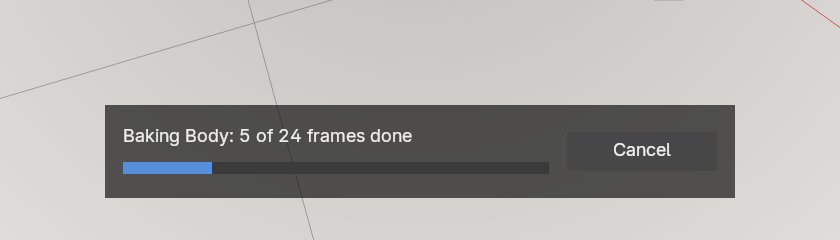 The bake's box at the bottom of the viewport, part way
To stop it, press Cancel in the box, or Esc. Fleshy asks first (Stop the bake? The 5
frames done are kept), and the bake waits while it asks:
- Stop Baking keeps every frame already done and saves it, as if you had baked that shorter range.
- Keep Baking, or Esc again, carries on.
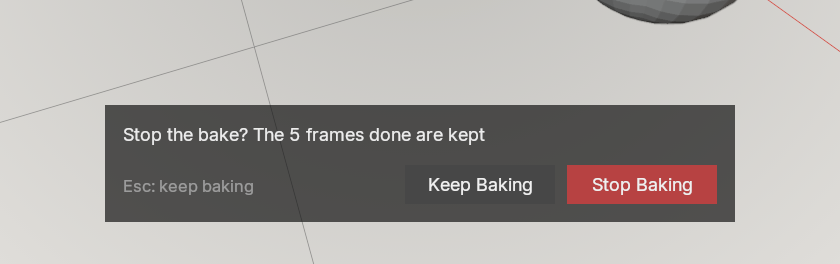 The question when you press Cancel
Blender answers between frames, so a click lands as soon as the frame in hand is done. Bake All works the same way; Bake This Frame is one frame, so it simply runs. A second Blender window is not held: an undo there ends the bake without saving it, and a change there to what is being baked is refused when the bake ends.
Stills
A still render is the same workflow with one frame. Pose the character, press Bake This Frame,
press F12. The frame is in the cache, so it renders, and it survives saving the file and baking
a shot later. A frame that nobody baked renders undeformed, and the panel says Frame N is not
baked.
Several characters, and baking from pose mode
Once anything is set up, the list in the Scene section shows every set-up object in the scene, with what its cache holds. Bake All under the list bakes every one of them, each over its own frame range and with its own settings. If one of them cannot be baked (a mesh that is not all quads, say), the others still are, and the one that failed is named. Its cache is left as it was.
The settings and buttons below the list belong to one object, and its name is shown above them:
- Select a mesh and the panel shows that mesh. Clicking an object in the list selects it and makes it active, as clicking it in the Outliner would.
- In pose mode on the rig, the panel stays up and shows the object you last picked in the list, set up, or baked. Clicking another object in the list switches to it and leaves your pose mode and selection alone. So you can pose, press Bake This Frame, and keep posing.
Smooth Pops
On by default, under the frame ranges. In animation the deformation sometimes jumps from one frame to the next by more than the motion explains: the bulge round a new contact appears at full height in the frame the contact starts, and goes as suddenly when it ends, and now and then a spot pushes in or out for a single frame and comes back. Each reads as a pop.
With Smooth Pops ticked, Bake evens out those jumps over a few frames: a jump becomes a short ramp, and a spot that pushes out for one frame stays in line with the frames around it. The rest of the animation is left as it is.
- Where the animation itself jumps (a cut, a key that snaps, something moved across in one frame) the jump is left as it is: in the mesh, and in what presses on it.
- Fast contact, a slap or a ball rolled quickly, changes a lot from frame to frame by itself, so it is left as it is, pops and all. Slower contact is smoothed.
- While a jump is spread, the flesh gives a little before the contact or after it, for a frame: what presses in can show through the skin slightly in that frame.
- A bake with it on takes a little longer: a few percent on a character. Bake This Frame and Live are never smoothed, since smoothing needs the frames around one. Re-baking a single frame of a smoothed shot leaves that frame unsmoothed: bake a range round it instead.
Turning it on or off changes the result, so frames baked one way are refused the other way until you bake again. Both stay in the cache, as with any setting.
05
The settings
Five settings shape the result. Regions change them on parts of the mesh, and two options handle tight folds and openings in the mesh.
The five settings
| setting | what it does | default | one arrow click |
|---|---|---|---|
| Bulge | how much the flesh bulges out around a contact: 1 is the normal amount, 2 twice as much, 0 none | 1.00 | 0.1 |
| Bulge Width | how far the bulge spreads out from the contact, in rows of faces, so a finer mesh (more subdivision) needs a bigger number for the same width | 15 | 1 |
| Dent % | how deep the flesh is pushed in where something presses on it, as a percentage of how thick it is there | 15 | 10 |
| Firmness % | how firm the flesh is: firm flesh dents less, and presses harder into its other parts and into other meshes (see Firmness) | 0 | 10 |
| Smoothing | smooths the result, most where the surface was stretched or squashed; 0 is off | 4 | 1 |
Bulge Width and Smoothing take fractions too, such as 15.5 or 2.5: the fraction blends toward the next whole number. Each setting is kept on a library override.
Where to start. The defaults are for skin at a joint, such as a knee or an elbow, where flesh squeezed from both sides rolls out. A cushion, a mattress or foam takes a dent without rolling out around it: Bulge 0 and Dent 70%. A strap or a hand pressed firmly into flesh: Dent 50% or more. The bulge's width and height follow the size of the faces where it is pressed: the same settings give a wider, taller bulge on a coarser mesh and a narrower, lower one on a finer mesh. Take these as a start and tune at the subdivision level you will render (step 1 of Your first shot).
One set of settings applies to every frame of an object: they can differ from one part of the body to another (see Regions), not from one frame to another.
Regions
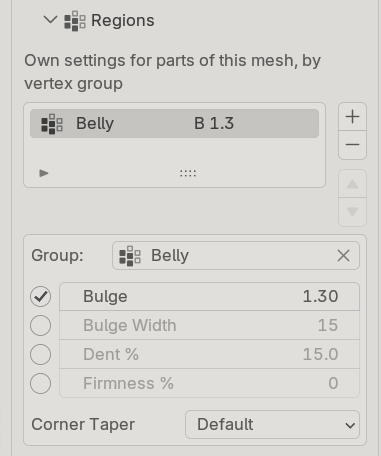 A region selected, with its own Bulge
Optional, and you do not paint anything. A region names a vertex group the character already has, such as a rig's deform group for the thigh, and changes this object's settings on that part of the mesh. (A different object has its own settings: pick it in the list in the Scene section.) Press Add Region to add one: it takes the active vertex group and changes nothing until you set something in it. If the mesh has no vertex groups the panel says so; make one in Object Data Properties ▸ Vertex Groups. Select a region in the list to see what it can set:
- Bulge, Bulge Width, Dent % and Firmness %: tick one to give the region its own value. It starts at the object's value, so ticking it changes nothing until you move it. The value follows the group's weights, vertex by vertex: where the group's weight is 1 the region's value applies, and where it is partial the value blends with the object's. A rig's skin weights already blend across a joint, so one region's value fades into the next. Where two regions overlap, they share the vertex by weight.
- Corner Taper: Default is the same as the whole mesh, which the Corner Taper checkbox decides. On tapers the contact patches this region owns even with that checkbox off, and Off leaves them alone even with it on. Unlike the values, the taper switches whole folds: a fold follows the region that holds most of it, so a region's edge never cuts a fold in half. A fold just outside a region, whose bulge reaches into it, follows its own switch.
Each row of the list says what its region sets: T for the taper, B for Bulge, D for Dent, W for Bulge Width, F for Firmness, or nothing set.
Where a region's edge crosses a fold, as at the crease of a raised thigh, the two sides of the fold take their own values: the belly side bulges by the hips' Bulge and the thigh side by the leg's. The change is spread over a short distance either side of the edge rather than stepping, even where a group's weight goes straight from 1 to 0. Well away from the edge, a region at Bulge 0.5 gives exactly what Bulge 0.5 on the whole object gives there.
Bulge Width per region follows the weights the same way: below the object's Bulge Width the bulge stops sooner there, and at 0 the contact there does not spread at all; above it, the bulge reaches further, only there. The change blends over a short distance at the region's edge, and nothing outside the region's reach changes.
Firmness
Firmness % (0 to 100, in the Deformation section) is how much the mesh resists being pressed in: at 100% it does not dent at all. A region can set its own, such as a firmer knee than belly. Because it also acts where one part of the mesh presses on another, it can change a contact's depth a little beyond the region itself.
Corner Taper
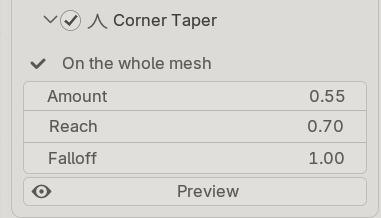 Corner Taper on the whole mesh, with its settings
Off by default. Off, the result is exactly what it is without the option.
Where a contact patch ends, as at the back of a bent knee, the bulge closes around the end into a dome, and a dome reads as more volume than the ridges along the sides. Corner Taper softens that dome. The corners are found automatically; you do not paint or mark anything.
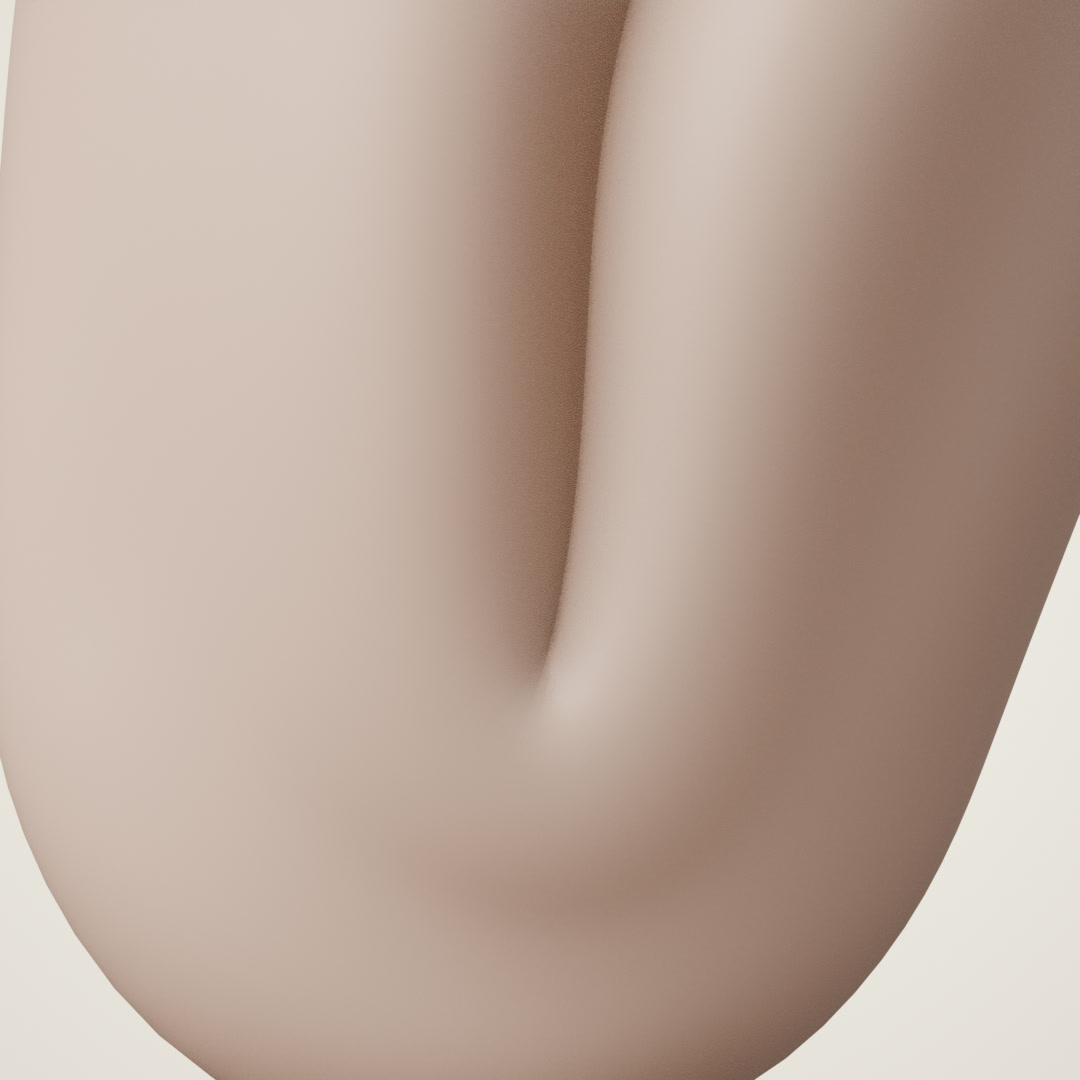 Corner Taper off: a dome of flesh where the crease ends
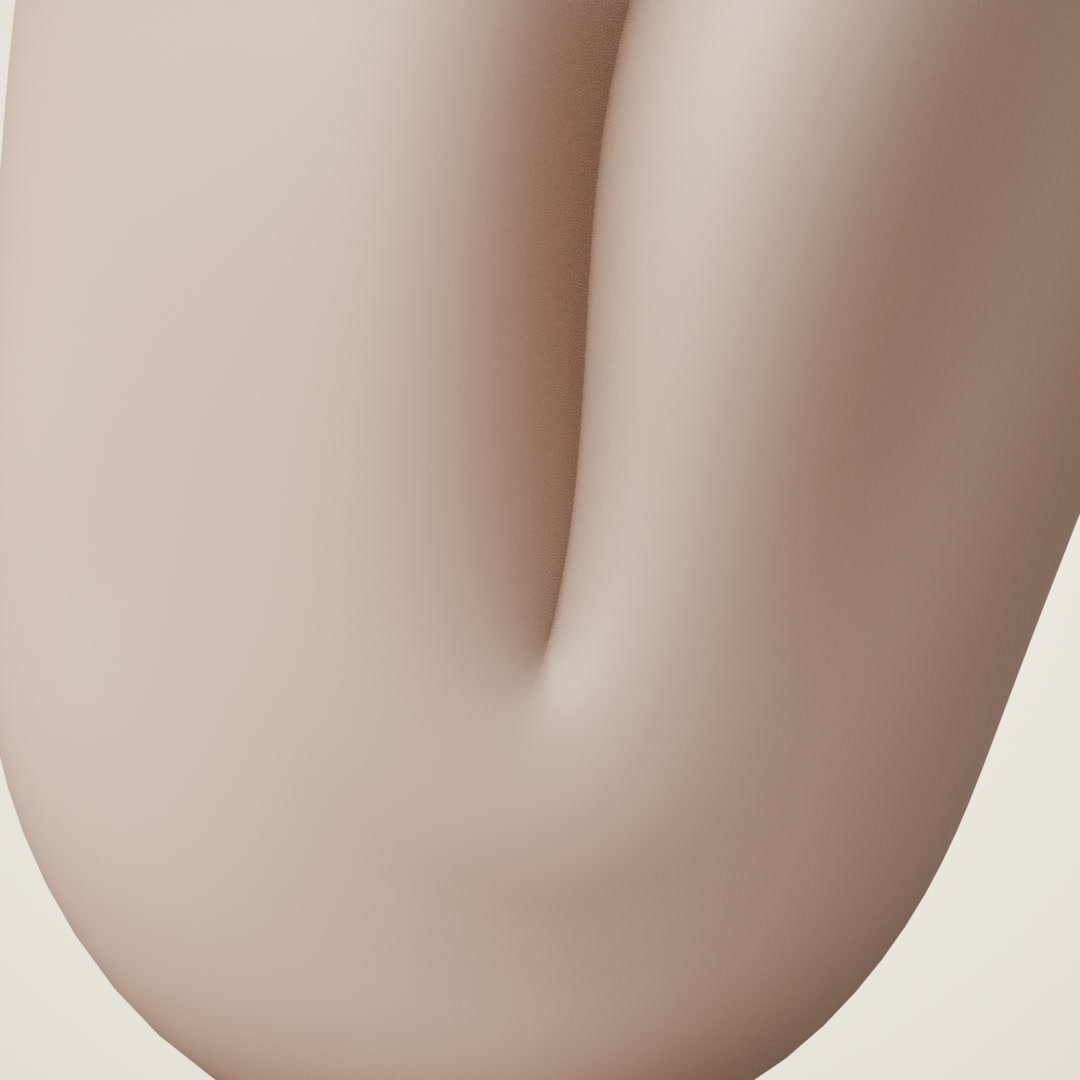 Corner Taper on: the crease closes flat
The checkbox in the section's header switches it on for the whole mesh. A region can switch it
on or off on its part of the mesh (see Regions): On there even with the checkbox
off, Off there even with it on. The first line of the section says where it acts: On the
whole mesh, On the whole mesh except Hips, Only in Thigh, or Off.
- Amount: how much of the bulge is taken away right in the fold; 1 takes all of it.
- Reach: how far out from the fold the softening starts, as a share of the contact's length.
- Falloff: how gradually it reaches full strength once it starts. 1 spreads it over the whole reach; lower values get there sooner. Because it still starts where Reach says, a lower Falloff also removes more: full strength covers more of the corner.
- Preview draws, in orange on the character, where the taper acts at this frame and how strongly. Moving a setting updates it straight away. It is a snapshot of the frame you pressed it on: after changing frame or pose, press it again. Nothing is saved with the file. At a low Falloff its edge looks sharper than the result: the surface itself stays soft.
Where it acts. On folds: places where the character's surface folds back against itself, like the back of a bent knee or the front of a raised thigh. It finds the crease where the two sides of the fold meet and softens the bulge at that end. Where two separate surfaces merely touch, such as a breast resting on the chest, it does nothing.
Through an animation it changes smoothly with the pose. One exception is worth knowing: where two neighbouring contacts join or part as the pose moves, the taper around them can shift by about one frame's worth of motion. Switching the taper off for that region removes it.
The effect is a few millimetres on a full-size character: look where the fold closes, close up.
Close Openings
Off by default, in the Deformation section. An opening in the mesh can read as contact where nothing touches it: a band pressed in near the opening, with a bulge round it. Openings like this come from a body whose head is a separate object (the neck), a Mask modifier's cut, or a garment's edge.
Close Openings fixes that, for this mesh and its colliders. Nothing is added to the mesh. With it on:
- the false contact near an opening goes;
- real contact near an opening, which a Mask's cut can hide, is found again.
Two kinds of edge are left as they are:
- the edge of a flat sheet, such as a ground plane or a card;
- a seam, where two pieces meet without being joined, such as a piece set into a hole in the body.
Turning it on or off changes the result, so frames baked one way are refused the other way until you bake again. Both stay in the cache, as with any setting.
06
Colliders
Other objects that press into a mesh: a hand, a chair, a prop, another character. A mesh always collides with itself; colliders are for everything else.
Adding a collider
Press Add Collider with the other objects selected to add them all, or with nothing else selected to add an empty entry and pick one (the panel asks you to). An entry is an Object or a Collection. A collection adds every mesh in it, but never the mesh it is set on. So several characters can share one: set each of them up with the same collection as its collider, and they press into each other. For the meshes that make up one character, such as a body and a separate head, use Several meshes as one instead.
How firm a collider is
- Firmness % (0 to 100) is how firm the collider is. At the same Dent, a firm collider (100%) presses the flesh in twice as far as a soft one (0%). How far it presses in also follows how far the collider reaches into the mesh.
- Use Its Own Firmness: a collider that is set up itself (another character, or a prop you set
up) presses with the Firmness it is set up with, ticked on every collider you add. Its Firmness,
and its regions' where they cover it: a character whose knee region is firm presses in harder
with the knee than with the thigh, into another character as into itself. The panel shows what
it presses with, such as
Uses Hand's own Firmness (0%) and its 1 region, and the list says F own. Untick it to give the whole collider the one Firmness typed here instead. A collider that is not set up always takes the number here. A firm part next to a soft one gives a firmer side to the dent and the bulge, blended rather than a sharp edge; the lower the Bulge Width, the sharper. Changing one of its Firmness regions, or the vertex group one reads, puts the frames of every character it presses out of date.
Another character as a collider
A set-up character presses as it is without its own deformation. So two characters can be each other's colliders: bake them in either order, or with Bake All, and re-baking one never puts the other out of date.
Showing and hiding colliders
- Hide a collider with the eye, not by disabling it. A collider disabled in viewports (the
monitor icon), or in a collection that is disabled or excluded, is not worked out by Blender, so
its place is unknown. The panel says so (
… is turned off in the viewport …), and a bake refuses rather than guessing. As a member of a Collection entry, an object disabled in viewports does still work, as long as that collection is not disabled itself. - Bake with colliders shown as they will render. A collider whose subdivision differs between the viewport and the render is a different surface in the render, and those frames are refused there, as for the character itself (see step 1 of Your first shot).
How deep a collider presses
- Dent sets how far the flesh gives. At the default Dent (15%), a collider pressed deep can show through the skin: a ball pressed 2 cm into a thigh dents it about 6 mm. For a firm press, raise Dent, to 50% or more; a soft cushion takes 70%.
- A thin collider needs more Dent to read, since it reaches only a little way into the flesh.
- A collider sunk deeper than it is thick is missed: a part wholly under the skin, such as the thin tip of a coil pushed right in, passes through untouched. Keep each part's press shallower than it is thick.
Exact Collider Edges
On by default, under the list, shown once there is a collider. Without it, where the edge of a collider moves over the flesh, a spot at the edge can sink for one frame and come back the next, with a bulge round it: a pop. A ball rolled over a cushion shows it at the ball's trailing edge.
Exact Collider Edges stops those pops. Everything else comes out the same.
- Only colliders. The mesh's own parts pressing into each other, and the meshes of a group set up as one, are not affected. With no collider the setting does nothing, so it is not shown.
- It works on every frame, Bake This Frame and Live included. With Smooth Pops as well, this removes the edge pops and Smooth Pops evens out what jumps remain.
Turning it on or off changes the result of a mesh with colliders, so frames baked one way are refused the other way until you bake again. Both stay in the cache, as with any setting. Frames baked for a mesh with colliders by a version of Fleshy without this setting were baked with it off: they read as out of date until you bake again, or untick it to play them as they are.
07
Several meshes as one
A character made of several meshes, such as a body with a separate head, or props that squash into each other, can be deformed as one mesh, with one set of settings and one bake.
The meshes press into each other as the parts of one mesh do.
Setting up a collection
- Put the meshes in a collection of their own (child collections count too).
- Select one of them and press Set Up Collection in the Object section. With one collection to
choose from, the button names it: Set Up Collection: Character. With several (a mesh in more
than one collection, or in a collection inside another) it says how many, Set Up Collection:
Pick 1 of 2, and opens a list of them in the Outliner's order, each by its path,
Shot > Character, and with how many meshes it would deform as one. - Bake, or switch to Live, as for one object.
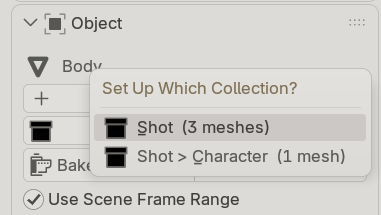 The list Set Up Collection opens for a mesh in Character, inside Shot
The list in the Scene section then has one row for the collection, with how many meshes it holds. Select
any of them and the panel shows the group's settings, with Set up together with 2 others in
<collection> under the name. Bake, Bake This Frame, Bake All, Live, Discard
Out-of-Date Frames and Remove act on the whole group. Each mesh keeps a cache file of its own.
Regions, firmness and colliders in a group
- Regions are by vertex group name, across the meshes: a region on
Kneeacts on every mesh that has a group of that name. A region can also be a whole mesh: pick the mesh icon beside the group field and choose one of the group's meshes, for a harder head than body without painting a group over the head. The line under the group field says which meshes have it. - Firmness counts where one mesh presses into another: a firm head presses the body in further.
- Colliders are other objects outside the group. The group's own meshes are never colliders: they are part of the mesh.
- A mesh put into the collection later joins the group: the row says
a mesh is not set up, its panel offers Set Up With the Collection, every mesh's frames are refused until you bake again, and the bake sets the new mesh up too. A mesh taken out leaves it.
Only meshes count, and each must be all quads, like any object here: a mesh of triangles (eyes, teeth) is refused by name. Keep it in another collection, or make it a collider. A mesh can be in one group only, and is never set up on its own as well. Set Up Collection on a collection holding a mesh already set up on its own takes it into the group; its own settings are kept, unused, and come back if it leaves.
Scale, and what makes a group re-bake
A mesh scaled by its object (not in its mesh) can look slightly different in a group than on its own: a scale of 0.96 changes it by at most 1.4% of its deformation, but a whole rig scaled far from 1, such as an import at 0.01, looks very different. Apply the scale if you want a mesh to look the same both ways.
What makes a group re-bake: an edit to any of its meshes refuses every mesh's frames, as do moving one of them, a collider moving, or scaling the whole group. Moving or turning the whole group, such as a character walking, does not: the deformation moves with it.
Linked characters: set up the overridden collection. Its settings are kept on reopen, like an object's.
A group or a collider?
Both press. The difference is what gets deformed:
| a collider | a mesh in the group | |
|---|---|---|
| is it deformed? | no, it only presses | yes, by the others, with the group's settings |
| how firm it is | one Firmness, or its own if it is set up: per vertex, by region | per vertex, by region, or a whole-mesh region |
| what it may be | any mesh | all quads |
| settings and bake | the character's own | one set and one bake for the group |
So put a body and its separate head in a group, and keep a hand prop, a chair or another character as colliders. A prop in a group is squashed too. To keep it rigid in a group, give it a whole-mesh region with Firmness 100%: the body then deforms as it does against that prop as a collider at Firmness 100%, to 0.02% of the deformation.
08
Rendering
What a render needs: Fleshy installed, the cache file beside the .blend, and frames baked at the
subdivision level the render uses.
Rendering here
A baked frame renders as it plays, F12 for a still and Ctrl+F12 for an animation. Renders never depend on what is shown in the viewport: hiding Fleshy, the Subdivision Surface or a collider with the eye changes nothing in a render. A frame that is not baked renders undeformed, and a frame that is out of date is refused there just as in the viewport (see When to bake again): you get the undeformed character, never a wrong one.
Why Fleshy switches itself off in the viewport
On any frame with nothing to play (nothing baked yet, a frame outside what you baked, or a frame whose cache is out of date), Fleshy turns its own viewport switch off, which keeps the viewport fast there. On the next frame that plays, it turns it back on. The eye icon on the modifier shows which it is.
It only ever switches off what it switched off itself. If you turn it off by hand, it stays off. Renders never look at this switch, and neither does Live mode, which keeps it on.
It helps most when the Subdivision Surface is the last modifier before Fleshy, with nothing (masks, say) between them.
Another computer or a render farm
- Install Fleshy there. Without it, a character renders with no contact deformation at all: nothing says so in the render. Tick it again and the baked frames play again, straight away.
- Copy the cache file with the
.blend, next to it (see Cache files). A cache file that is not where the file says is looked for there when the file opens, so the folder's name and the drive do not matter, and a cache is not tied to a machine, a Blender version or a graphics card. - On the command line,
blender -b shot.blend -auses that Blender's preferences, so Fleshy is on if it is ticked there.--factory-startupstarts with no add-ons at all: leave it out, or add--addons bl_ext.user_default.fleshy, the name Blender gives Fleshy when it is installed from a file.
Motion blur
Motion blur renders as usual from the baked frames: the character's motion is blurred, and the deformation is not blended between two frames. In Live mode it follows the pose through the shutter.
Linked characters (library overrides)
A character linked from another file is set up on its library override (in the 3D Viewport, Object ▸ Library Override ▸ Make). A linked character that is not overridden cannot be baked, and the panel says so. On the override you can use Set Up, the settings, regions, colliders, frame ranges, Bake and playback as on a local character. They are kept when you save and reopen the shot, and when the character's file changes and Blender resyncs the override. If the character's mesh itself was edited in its file, the cache is out of date and says so: bake again.
09
When to bake again
A baked frame plays only while nothing it was solved from has changed; Fleshy checks this on every frame and names what moved.
The cache is tied to the mesh it was baked from. Bake again after changing:
- a setting (Bulge, Dent, Bulge Width, Smoothing, Firmness), a Corner Taper setting, a region's settings, Close Openings, Smooth Pops, Exact Collider Edges, or the colliders (the list, or a collider's Firmness, or, for a set-up collider pressing with its own, its Firmness, its Firmness regions or the vertex groups they read);
- the subdivision level, or any modifier above Fleshy, including adding, removing, reordering or re-enabling one;
- the base mesh, its vertex groups, creases or shape keys.
In a group of meshes set up as one (Several meshes as one), any of these on one of its meshes makes every mesh's frames out of date, because each is solved with the others.
You also need to bake again the frames whose pose you changed after baking: re-posing a baked frame, adding or moving keys, retiming. This is checked frame by frame. An edited frame is refused, and the frames you did not touch keep playing. Bake again just the ones it names. The same goes for a collider moved, re-animated or re-modelled after baking.
Updating the add-on can also put a cache out of date, when the new version solves some setting differently; the panel says so.
You do not need to bake again for: moving the character as a whole, scrubbing or playing anywhere in the baked range, hiding things in the viewport, or rendering on a different Blender version.
It will never play back a frame when one of those has changed. You get the undeformed character and a message, not a plausible-looking wrong result.
Two things about the pose check
- It is strict. Bending a finger on a baked frame refuses that frame too, even though the finger is nowhere near the knee. This is deliberate: a hand that moves might be moving into contact.
- In the viewport it is checked when the frame changes. If you re-pose without changing frame, the old deformation stays on screen until you scrub. A render always checks.
Settings changed and changed back
If you change a setting and then change it back, the frames baked with the original setting play again. Nothing is thrown away until you ask. Discard Out-of-Date Frames, in Cache inside the Scene section, removes the frames that no longer match anything in the scene.
Use Baked Settings, at the top of the Deformation section, changes them back for you: every setting the out-of-date frames were baked with, regions and colliders included, and they play again at once. It is greyed until a setting changes after a bake; hover it to see why. So you can try a new Bulge with Bake This Frame, and if you do not like it, press Use Baked Settings to go back to the rest of the shot. If the frames were baked with different settings at different times, it picks the settings most of them were baked with.
It cannot put back what lives somewhere else: a collider that has been deleted, or a set-up collider's own Firmness. Then it changes nothing and says so; bake again.
For people who script Blender
A script that edits vertex groups and then changes frame in the same run should call
bpy.context.view_layer.update() in between; otherwise the viewport can show the old deformation
for that frame. A render always checks everything.
10
What the panel tells you
Every message Fleshy shows, what it means, and what to do about it.
Messages
| message | meaning |
|---|---|
Ready to bake (N vertices) |
Set up. Press Bake This Frame or Bake. |
Baked frame N in … s: M vertices in contact |
The bake worked; M says how much of the mesh is pressed. |
… Nothing touches here: add what presses on it under Colliders |
Nothing presses on the mesh at this frame. If something should (a hand, a chair), add it under Colliders. Its own parts pressing together are found without that. |
Baked: 1-24 ✓ |
Those frames are baked with the current settings, and play. |
Out of date: 1-24, baked with other settings. Bake again to update |
A setting changed since those frames were baked. Bake again, or press Use Baked Settings and they play again. |
Playing the baked frames (1-24, 40) |
Working normally. The frames listed are the ones in the cache. |
Baking Body: 5 of 24 frames done |
A bake is running, in the box at the bottom of the viewport. Cancel or Esc to stop it. |
Stop the bake? The 5 frames done are kept |
You pressed Cancel or Esc. Stop Baking keeps the frames done; Keep Baking, or Esc again, carries on. |
… Stopped before its last frame |
A bake you stopped. The frames done are saved; bake again for the rest. |
No baked frames found at <path>. Bake to make them |
The cache file is not where the file says: deleted or moved. Bake again, or put the cache file next to the .blend and open it again. |
Frame N is not baked |
Nothing baked here, so it renders undeformed. Press Bake This Frame, or bake a range that includes it. |
Live: frame N is outside the frame range, so it is not deformed |
Live mode with Every Frame off, on a frame none of the ranges holds. Add a range, or tick Every Frame. |
Hidden or simplified in the viewport. Renders are up to date: nothing to bake |
Expected once you hide Fleshy in the viewport (step 5 of Your first shot). Nothing to do. |
Out of date: … Bake again to update |
Something in When to bake again changed; the message names it. This frame is switched off until you bake it again. |
Out of date: the pose at frame N changed after it was baked … |
The animation was edited at this frame after baking. Bake it again. |
Out of date: a collider (…) moved after frame N was baked … |
A collider was moved or re-animated after baking. Bake again the frames it names. |
Out of date: a collider (…) changed after frame N was baked … |
A collider's modifiers or subdivision changed, or an object was added to or removed from a collider collection. |
Out of date: frame N was baked at another subdivision level … |
You baked at another subdivision level since, and went back. Bake any frame at this level and the frames already baked here play again. |
… is turned off in the viewport … |
A collider is disabled in viewports, or its collection is excluded, so its place is unknown. Show it, and hide it with the eye instead. |
Cannot put the settings back: <name>, which they used, is gone … |
Use Baked Settings needs a collider or mesh that has been deleted. Nothing was changed. Bake again. |
Cannot put the settings back: something else they were baked with has changed too … |
Besides this panel's settings, something they used changed elsewhere, such as a set-up collider's own Firmness. Nothing was changed. Bake again, or put that back by hand. |
Cannot bake: part of Fleshy is missing. Install it again |
Part of the add-on did not load. Frames already baked still play; you cannot bake new ones until you install it again. |
Click one in the list to see its settings |
Nothing is selected that the panel can show. Click an object in the list. |
Select a mesh to start: the character's body, not its rig |
Nothing is set up yet and the selected object is not a mesh. |
Nothing set up yet. Press Set Up below to start |
No mesh here has the deformer yet. Press Set Up in the Object section. |
The list's rows
Each row of the object list says one of these:
| row | meaning |
|---|---|
24 frames ✓ |
That many frames are baked with the current settings. |
24 frames, 10 out of date ✓ |
Some frames were baked with other settings. They are kept, but only the 24 play. |
out of date ⚠ |
Every baked frame was made with other settings. Bake again, or press Use Baked Settings. |
24 frames ⚠ |
The frame you are on is refused. The message box below the buttons says why. |
not baked |
Nothing baked yet. |
unreadable ⚠ |
The cache file is damaged or is not a cache. |
A row notices a settings change straight away, and an edited mesh, modifier or pose when you next change frame.
11
Limits worth knowing
What Fleshy does not do, or does differently from what you might expect, and what to do about each.
How it deforms
- It stays off modelled creases. Where a surface has a crease set, it does not deform across it. This is deliberate.
- Grazing contact is weaker than you might expect. Surfaces that slide past each other rather than pressing in produce less deformation.
- Deformation changes with subdivision level. The same pose and settings give a different amount of squash at level 1 and level 3, which is why step 1 of Your first shot exists: tune at the level you will render and the question never arises.
- The surface can slide a little sideways where it is pressed.
- Contact starts and ends with a small jump. At first touch and at parting, the bulge appears and goes within a frame. Smooth Pops spreads it over a few frames when baking.
- An opening in the mesh can read as contact where nothing touches: a separate head's neck, a Mask modifier's cut, a garment's open edge. Tick Close Openings.
- A rig with linear blending caves in the inside of a bend before anything touches, and it can look like a dent Fleshy made. It is the rig: tick Preserve Volume on the Armature modifier.
Settings and frames
- One set of settings per object, or per group (Several meshes as one). Only frames baked with the current settings play: you cannot have one range at Bulge 0.7 and another at 1 on the same character. Frames baked with other settings are kept, but refused until the settings match again. (Settings can differ from one part of the body to another: see Regions.)
- Outside the frame ranges nothing deforms, in Live as in Baked.
- Anything that changes the vertex count or order needs a new bake: see When to bake again.
With colliders
- At the default Dent a collider pressed deep shows through, and a collider sunk deeper than it is thick is missed: see How deep a collider presses.
- It does not hold two surfaces apart. Fleshy shapes how the flesh gives; on a mesh with few faces a collider's edge can pass between its points, even where the dent is deep enough. More faces where it is pressed help, at some cost in speed. Where nothing may ever pass through, such as a close-up of a hand sunk into a cushion, use a Mesh Deform cage or a simulation, which keep the surfaces apart exactly.
Files and systems
- Windows only, 64-bit. macOS and Linux are not supported yet.
- Without the add-on, a set-up file shows no contact deformation: see Turning it off, and uninstalling.
Not tested yet
Fleshy has not yet been tried with these. If you use one and something looks wrong, write to nocom.studios@gmail.com with what you did:
- a read-only or full disk while baking;
- one cache file open in two Blenders at once;
- several scenes in one file, or switching scenes;
- time remapping, a frame step other than 1, negative frames, or a preview range;
- Live mode during a render;
- two objects whose names differ only by
.and_, such asBody.001andBody_001, which bake into one cache file.
12
Files, updates and uninstalling
What Fleshy puts in your file and on your disk, and how to take it off again.
The cache objects
Each set-up mesh has one hidden object, Fleshy_Cache_<object>, that Fleshy needs to show it.
They are all in one collection, Fleshy Caches, under Scene Collection, made at the first
Set Up and deleted when Remove takes the last one. Leave them there: deleting one stops its
mesh deforming until you press Set Up again. The collection can be collapsed, hidden or
excluded (its checkbox) to tidy the Outliner; the meshes still deform.
A copy of a set-up mesh (Shift+D, Alt+D) gets a cache object of its own straight away and plays nothing until you bake it; its bake writes its own cache file. Deleting a set-up mesh with Delete rather than Remove leaves its cache object behind: saving the file deletes it, and so does Delete Unused Cache Objects in Cache, which shows only while there is one. Neither touches the cache files on disk.
Cache files
One .npz next to your .blend, named <blendfile>_fleshy_<object>.npz. If the file has never
been saved it goes to Blender's temporary folder instead, which Blender empties when it closes; the
Cache section says so. The first time you save the file, the baked frames move next to it, and
the saved file points there. Safe to delete: you will just need to bake again.
Remove Fleshy takes the deformer off the object and asks whether to delete its cache file too, with the file's size. It is left on disk unless you tick that, so Set Up again brings the baked frames back. A deleted file cannot be brought back with undo, and a file that another object also uses is never offered.
Moving the .blend to another folder or machine takes the cache with it if you copy that file
too, next to the .blend: a cache file that is not where it was is looked for there when the file
opens. The cache is not tied to a machine, a Blender version, or a graphics card.
Every bake is added to the same file. Baking the same frames over and over does not grow it without limit.
Turning it off, and uninstalling
Without the add-on, a character shows no contact deformation. That is what you see when you untick Fleshy in Edit ▸ Preferences ▸ Add-ons, when a file is opened where it is not installed (a render farm, a colleague's machine), and after uninstalling. Tick it again and the baked frames play again, straight away. So install it wherever the file is rendered.
To uninstall: first Remove Fleshy from your characters in every file you will keep. Then Edit ▸ Preferences ▸ Add-ons, open the menu at the right of Fleshy's row, and choose Uninstall. Some of its files stay in use until Blender closes, and Blender deletes them the next time it starts; after that nothing is left. Cache files stay where they are.
13
Licence
Fleshy comes in two parts, and LICENSE.txt inside the zip gives both licences in full.
- The Blender interface (the Python files): the GNU General Public License, version 3 or later, with a permission to use it with the compiled core.
- The compiled core (the two files in the
wheelsfolder, and what Blender installs from them): an End User License Agreement. One purchase covers you on any computer you use for personal and commercial work, and, if you bought it as an organisation, your own staff. You may not share, sell or modify it, or reverse engineer it.
What you make with Fleshy (images, animation, .blend files) is yours. Fleshy is made by moyu_ch:
nocom.studios@gmail.com.