Manual · 02
The panel
Everything is in the 3D viewport's sidebar (press N), under the Fleshy tab, in five sections: Fleshy, Scene, Object, Deformation and Colliders.
Each section opens and closes on its own and can be dragged up or down by the dots at the right of its header. Ctrl+click a header to open it and close all the others, and hover one for what the section is for. A section with nothing in it yet shows only its Add button.
Every setting belongs to one object, or to one group of meshes set up as one (see Several meshes as one). For another character, pick it in the list in the Scene section.
The Fleshy section
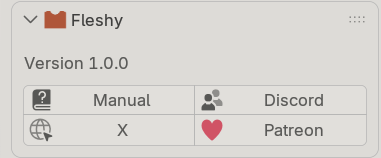 The Fleshy section: the version and the links
Which version of Fleshy you have, and buttons that open, in your web browser, this manual, Fleshy's account on X, and its Patreon page, where new versions are posted. Discord says how to join: Fleshy's Discord is invite only, so send us a message on X or Patreon and we will invite you. When you ask for help, say which version you have.
The Scene section
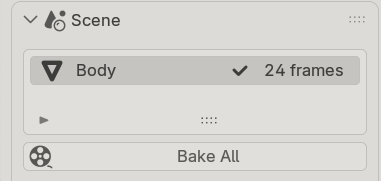 The Scene section: the list of set-up objects, with Bake All
Every set-up object in the scene, each with what its cache holds (see
The list's rows), and Bake All. The section is always there. Before
anything is set up it says what to do: Select a mesh to start while no mesh is selected (a rig,
say), and Nothing set up yet. Press Set Up below to start once one is.
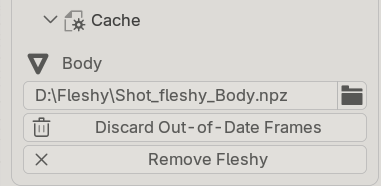 Cache, inside the Scene section, opened
Inside it, Cache, closed until you open it. It belongs to the object picked in the list, which its first line names: where that object's baked frames are saved, Discard Out-of-Date Frames (see When to bake again), and Remove Fleshy (see Cache files).
The Object section
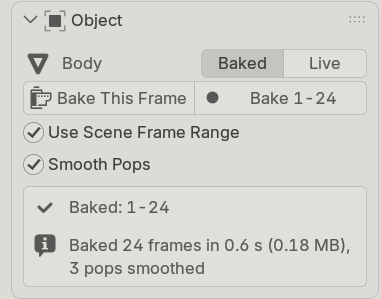 The Object section in Baked mode
The object the buttons act on, with Baked | Live beside its name (see Live or Baked). A mesh that is not set up yet shows Set Up here, and Set Up Collection for the collections it is in (see Several meshes as one).
In Baked mode: Bake This Frame and Bake (the button shows the frames), the frames to bake, Smooth Pops (see Smooth Pops), then one box with which frames are baked and the last message. In Live mode: Update, the frames to solve on, and the last message.
The Deformation section
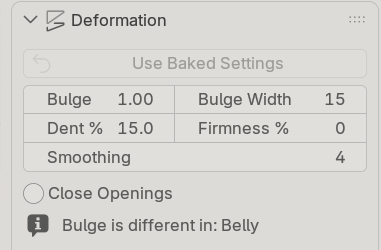 The Deformation section: the five settings
In Baked mode, Use Baked Settings first (see
Settings changed and changed back). Then this object's
settings, in two columns: Bulge and Bulge Width, Dent % and Firmness %, then Smoothing (see
The settings), and Close Openings. It notes any setting a
region changes, such as Bulge is different in: Belly. Inside it:
- Regions: different settings on parts of this mesh, by vertex group. See Regions.
- Corner Taper: the checkbox in its header, and its settings, shown while it acts somewhere. See Corner Taper.
The Colliders section
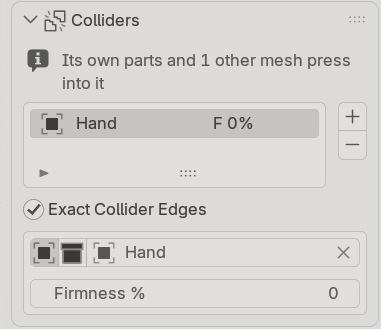 The Colliders section with one collider
Other objects that press into this mesh and, once there is one, Exact Collider Edges. The
first line says what presses on the mesh: Only its own parts press into each other, or Its own
parts and 2 other meshes press into it. See Colliders.
Number fields and the sidebar's width
Hover a number field and arrows appear at its ends: each click steps it, by 0.1 for Bulge, 10% for Dent and Firmness, 1 for Bulge Width and Smoothing, and 0.05 for the Corner Taper's settings. Drag across it for any value in between, or double-click it and type one. Hover any setting or button for what it does.
Drag the sidebar wider and a region's settings and the Corner Taper's go into two columns too.